
Creative Sound Blaster X-Fi カードの取り付け
|
|
|
- あきお にばし
- 9 years ago
- Views:
Transcription
1 Creative Sound Blaster X-Fi card installation HP xw Workstation series This document describes the hardware and software installation of the Creative Sound Blaster X-Fi. For more information, refer to the Installation and Application CD. Kit contents Sound Blaster X-Fi audio card Installation and Application CD Front audio adapter cable (for HP xw6000 or xw8000 series workstations, see the system requirements section) Regulatory compliance notices Cable clip Warranty information Support arm System requirements HP xw Workstation series (except the HP xw3100 Workstation) Microsoft Windows XP Service Pack 1 (SP1) or newer operating system Optical drive Empty PCI or PCI-x slot (see Note on page 4) Warranty information Any warranty information is superseded by the HP warranty term provided in the warranty document Hewlett-Packard Development Company, L.P. The HP Invent logo is a registered trademark of Hewlett-Packard Development Company, L.P. Microsoft and Windows are U.S. registered trademarks of Microsoft Corporation. Printed in the U.S. ENWW HP xw Workstation series 1
2 Warnings and cautions WARNING! Any surface or area of the equipment marked with these symbols indicates the presence of a hot surface or hot component. If this surface is contacted, the potential for injury exists. To reduce the risk of injury from a hot component, allow the surface to cool before touching. WARNING! Any surface or area of the equipment marked with these symbols indicates the presence of an electrical shock hazard. To reduce the risk of injury from electrical shock, do not open any enclosed area. WARNING! To reduce the risk of electric shock or damage to your equipment: Do not disable the power cord grounding plug. The grounding plug is an important safety feature. Plug the power cord in a grounded (earthed) outlet that is easily accessible at all times. Disconnect power from the equipment by unplugging the power cord from the electrical outlet. WARNING! To reduce the risk of serious injury, read the Safety & Comfort Guide. It describes proper workstation, setup, posture, and health and work habits for computer users, and provides important electrical and mechanical safety information. This guide is located on the Web at ergo and/or on the documentation CD if one is included with the product. WARNING! If a product is shipped in packaging marked with this symbol,, the product must always be lifted by two persons to avoid personal injury due to product weight. CAUTION: Static electricity can damage the electronic components of the workstation. Before beginning these procedures, be sure you are discharged of static electricity by briefly touching a grounded metal object. CAUTION: Observe the following cautions when removing or replacing a processor: Installing a processor incorrectly can damage the system board. Have an HP authorized reseller or service provider install the processor. If you plan to install it yourself, read all of the instructions carefully before you begin. Failure to follow the workstation preparation instructions and these result in an improperly installed processor, causing extensive system damage. Processor socket pins are delicate and bend easily. Use extreme care when placing the processor in the socket. 2 Creative Sound Blaster X-Fi card installation ENWW
3 CAUTION: To prevent damage to this system, observe the following Electro Static Discharge (ESD) precautions while performing the system parts removal/replacement procedures: Work on a static-free mat. Wear a static strap to ensure that any accumulated electrostatic charge is discharged from your body to the ground. Create a common ground for the equipment you are working on by connecting the static-free mat, static strap and peripheral units to that piece of equipment. NOTE: HP accessories are for use in HP workstation products. They have been extensively tested for reliability and are manufactured to high quality standards. HP, therefore, warrants only those accessories that are manufactured or sold by HP. ENWW Warnings and cautions 3
4 Step 1 Preparing the workstation Your workstation documentation includes instructions for preparing the workstation for component installation. To prepare the workstation for component installation: 1. Power down the workstation. 2. Disconnect power from the workstation. 3. Open the access cover. For product-specific information, see the Service and Technical Reference Guide for your HP workstation at Step 2 Installing the card and software 1. Open the PCI card retainer and remove the rear PCI metal slot cover of the PCI slot where you install the sound card. The audio card can be installed in any PCI or PCI-x slot, but HP recommends installing the card in an available 32-bit slot. NOTE: When the sound card is installed in a 64-bit slot, the entire 64-bit bus runs at 32-bit mode. This action can degrade the system performance if another 64-bit device is installed on the same bus. However, if there is no 32-bit slot available, use PCI-X 133 since it is an isolated 64-bit bus slot. PCI-X is only available on xw8000 and xw9000 series workstations. 2. Install the Sound Blaster card and secure the PCI retainer. 3. Disconnect the front audio cable from the front audio header on the system board. 4. Connect the front audio cable disconnected in step 3 from the system board to the front audio connector on the Sound Blaster card. 5. If your system came with a CD audio cable that connects the optical drive to the system board, disconnect the cable from the system board. Leave the other end of the cable connected to the optical drive. 4 Creative Sound Blaster X-Fi card installation ENWW
5 6. Connect the CD audio cable disconnected in step 5 to the AUX_IN (1) or CD_IN (2) connector on the Sound Blaster card. CAUTION: card. Do not connect the CD audio cable to the VIDEO_IN connector on the Sound Blaster Figure 1 Sound Blaster X-Fi XtremeMusic card Figure 2 Sound Blaster X-Fi XtremeGamer card 7. If you ship your workstation, install a hold down on the card. See Shipping your HP workstation on page 6 for details. 8. Close the chassis side cover. 9. Connect the AC power, turn on the computer, and wait for the system to boot. If the New Hardware Found wizard appears, select Cancel. 10. Insert the Installation and Application CD into the CD-ROM drive. 11. When the installation software starts, follow the onscreen instructions to install the driver and applications for the sound card. Restart the system when prompted to do so. ENWW Step 2 Installing the card and software 5
6 If the application does not start, double-click the setup.exe file in the Installation and Application CD. NOTE: To check the availability of newer drivers for your workstation, go to After you have installed the software, see your speaker manufacturer documentation for instructions on how to connect the speaker to your system. NOTE: When the sound card is installed in the system, the internal chassis speaker only functions for diagnostic beeps and does not play any other sound. The rear audio connectors on the system board are also disabled when the X-Fi sound card is installed. Use the audio output from the X-Fi sound card for audio connection to the external audio device. Shipping your HP workstation When shipping your HP xw6000, xw8000, or xw9000 series workstation, install the shipping support arm. For standard desktop use, the shipping support is not required. NOTE: Your workstation might look different than the one shown graphics below. Adding support arm to card support assembly (HP xw8000/xw9000 series workstations only) 1. Add a new arm and insert it from bottom of the housing. The new arm must support the X-Fi card, so choose the correct location. Your workstation might have other support arms already installed over other slots (not shown in picture). 2. Push the arm into the housing (1). Slide the arm back to lock it in place (2). Figure 3 Preparing the support arm 6 Creative Sound Blaster X-Fi card installation ENWW
7 3. Engage the hooks in the openings along the edge of the rear of the chassis. Figure 4 Engaging the support hooks 4. Rotate the support arm down, and compress the spring of the arm until it snaps into place. Figure 5 Installing the support arm ENWW Shipping your HP workstation 7
8 Installing the HP xw6000 series workstation support arm 1. Insert the arm by engaging the hooks in the openings along the edge of the rear of the chassis. Figure 6 Engaging the support hooks 2. Lower the arm over the card. Figure 7 Lowering the support arm 8 Creative Sound Blaster X-Fi card installation ENWW
9 Creative Sound Blaster X-Fi カードの取り付け HP xw シリーズワークステーション このマニュアルでは Creative Sound Blaster X-Fi のハードウェアおよびソフトウェアの取り付けについて説明します 詳細については Installation and Application( インストールとアプリケーション )CD を参照してください キットの内容 Sound Blaster X-Fi オーディオカード Installation and Application( インストールとアプリケーション )CD フロントオーディオアダプタケーブル (HP xw6000 または xw8000 シリーズワークステーション用 システム要件のセクションを参照 ) 規制準拠に関するご注意 ケーブルクリップ 保証書 サポートアーム システム要件 HP xw シリーズワークステーション (HP xw3100 ワークステーションを除く ) Microsoft Windows XP Service Pack 1(SP1) 以降のオペレーティングシステム オプティカルドライブ PCI または PCI-x の空きスロット ( ページ 4 の注記を参照 ) 保証に関する情報 保証に関する情報は 保障に関するドキュメントに記載された HP の保障に関する条件によって置き換えられます JAWW HP xw シリーズワークステーション 1
10 警告および注意 警告! 装置の表面または領域にこの記号が貼付されている場合は 高温の表面または高温の部品が存在することを示しています この表面に触れると 火傷をするおそれがあります 高温の部品による火傷の危険を防ぐため 必ず 表面の温度が十分に下がってから手を触れてください 警告! 装置の表面または領域にこの記号が貼付されている場合は 感電のおそれがあることを示しています 感電によるけがを防ぐため カバーは開けないでください 警告! 感電または装置の損傷の危険がありますので 次の点を守ってください 必ず電源コードのアース端子を使用して接地してください アース端子は重要な安全機能です 電源コードは 製品の近くの手が届きやすい場所にあるアースされた電源コンセントに差し込んでください 電源コンセントから電源コードを抜いて コンピュータの電源を切断してください 警告! 操作する人の健康を損なわないようにするため 快適に使用していただくために をお読みください 正しい作業環境の整え方や 作業をする際の姿勢 および健康上 / 作業上の習慣について説明しており さらに 重要な電気的 / 物理的安全基準についての情報も提供しています 快適に使用していただくために は HP の Web サイト ( から [ 日本語 ] を選択して参照できます また 製品に Documentation CD( ドキュメンテーション CD) が付属している場合は この CD にも収録されています 警告! 製品の出荷パッケージにの記号が付いている場合は 製品の重さによるけがを防ぐために 製品は必ず 2 人で持ち上げてください 注意 : 静電気の放電により ワークステーションの電子部品が破損することがあります 作業を始める前に アースされた金属面に触れるなどして 身体にたまった静電気を放電してください 注意 : プロセッサを取り外すか交換するときは 次の注意事項に従ってください プロセッサを正しく取り付けないと システムボードを損傷することがあります プロセッサの取り付けは HP 認定の販売代理店またはサービスプロバイダにお任せください 自分で取り付ける場合は 開始前に すべての操作手順を注意深くお読みください ワークステーションの準備手順に従わないと プロセッサが適切に取り付けられず システムの大きな損傷を招く原因となります プロセッサソケットのピンは壊れ易くて曲がり易いものです プロセッサをソケットに取り付けるときは 十分に注意してください 2 Creative Sound Blaster X-Fi カードの取り付け JAWW
11 注意 : システムの損傷を防ぐため システム部品の取り外し / 交換の手順を実行する際は 静電気 (ESD) に関する以下の注意事項を守ってください 静電気防止マットの上で作業をしてください 静電気ストラップを着用して 蓄積されたすべての静電気が確実に身体から地面に放電されるようにしてください 作業対象の装置に静電気防止マット 静電気ストラップ および周辺装置を接続して 装置共通のアースを作成してください 注記 : HP オプション製品は HP ワークステーション製品用に設計されています また 徹底した信頼性検査が行われ 高い品質基準において製造されています このため HP では 自社で製造販売したオプションのみ品質保証します JAWW 警告および注意 3
12 手順 1: ワークステーションの準備 ワークステーションのマニュアルには 部品を取り付ける際のワークステーションの準備手順が記載されています 部品の取り付けのためにワークステーションを準備するには 次の手順に従ってください 1. ワークステーションの電源を切ります 2. ワークステーションの電源コードを外します 3. アクセスカバーを開きます 製品固有の情報については 英語サイト ) からお使いの HP ワークステーションの Service and Technical Reference Guide( サービスおよびテクニカルリファレンスガイド ) を参照してください 手順 2: カードの取り付けとソフトウェアのインストール 1. PCI カードリテイナを開き サウンドカードを取り付ける PCI スロットの背面の PCI メタルスロットカバーを外します オーディオカードは どの PCI または PCI-x スロットにも取り付けられますが 空いている 32 ビットのスロットに取り付けることをおすすめします 注記 : サウンドカードを 64 ビットのスロットに取り付けると 64 ビットバス全体が 32 ビットモードで動作します このような取り付けを行うと 同じバスに別の 64 ビットデバイスが取り付けられている場合 システムのパフォーマンスが低下することがあります ただし 32 ビットのスロットが空いていない場合 PCI-X 133 は独立した 64 ビットバススロットなのでそれを使用します PCI-X は xw8000 および xw9000 シリーズのワークステーションでのみ使用できます 2. Sound Blaster カードを取り付け PCI リテイナを固定します 3. フロントオーディオケーブルを システムボードのフロントオーディオヘッダから外します 4. 手順 3 でシステムボードから取り外したフロントオーディオケーブルを Sound Blaster カードのフロントオーディオコネクタに接続します 5. オプティカルドライブをシステムボードに接続する CD オーディオケーブルがシステムに付属している場合は そのケーブルをシステムボードから外します オプティカルドライブに接続されている他のケーブルの端子はそのままにしておきます 4 Creative Sound Blaster X-Fi カードの取り付け JAWW


13 6. 手順 5 で外した CD オーディオケーブルを Sound Blaster カードの AUX_IN(1) または CD_IN (2) コネクタに接続します 注意 : CD オーディオケーブルを Sound Blaster カードの VIDEO_IN コネクタに接続しないでください 図 1 Sound Blaster X-Fi XtremeMusic カード 図 2 Sound Blaster X-Fi XtremeGamer カード 7. ワークステーションを搬送する場合は カードにホールドダウンを取り付けます 詳しくは 6 ページの HP ワークステーションの搬送 を参照してください 8. シャーシサイドカバーを閉じます 9. 電源を接続し コンピュータの電源を入れて システムのブートを待ちます [ 新しいハードウェア ] ウィザードが表示された場合は [ キャンセル ] を選択します 10. Installation and Application( インストールとアプリケーション )CD を CD-ROM ドライブに挿入します JAWW 手順 2: カードの取り付けとソフトウェアのインストール 5

14 11. インストールソフトウェアが起動したら 画面の指示に従ってサウンドカードのドライバおよびアプリケーションをインストールします システムの再起動を要求されたら再起動します アプリケーションが起動しない場合は Installation and Application( インストールとアプリケーション )CD の setup.exe ファイルをダブルクリックします 注記 : お使いのワークステーションで使用可能な新しいドライバを確認するには にアクセスしてください 12. ソフトウェアをインストールしたら システムへのスピーカーの接続手順をスピーカーのメーカーのマニュアルで確認します 注記 : システムにサウンドカードを取り付けた場合は 内部シャーシのスピーカーは診断用のビープとしてのみ動作し 他のサウンドは再生しません また X-Fi サウンドカードを取り付けた場合は システムボードのリアオーディオコネクタは無効になります 外部オーディオデバイスへのオーディオ接続には X-Fi サウンドカードからのオーディオ出力を使用します HP ワークステーションの搬送 HP xw6000 xw8000 xw9000 シリーズワークステーションを搬送するときは 搬送用のサポートアームを取り付けます デスクトップで標準的な方法で使用している場合は 搬送時のサポートは必要ありません 注記 : お使いのワークステーションは 下図と異なる場合があります カードサポートアセンブリへのサポートアームの追加 (HP xw8000/xw9000 シリーズワークステーションのみ ) 1. 新しいアームを追加し ハウジングの底から挿入します 新しいアームによって X-Fi カードを支える必要があるので 正しい位置を選択します ご使用のワークステーションの他のスロットに 既に別のサポートアームが取り付けられている場合があります ( 図には示されていません ) 2. アームをハウジングに押し込みます (1) アームを後ろにスライドしてロックします (2) 図 3 サポートアームの準備 6 Creative Sound Blaster X-Fi カードの取り付け JAWW

15 3. フックをシャーシの背面のエッジに沿って開口部に引っ掛けます 図 4 サポートフックの取り付け 4. サポートアームを下に回し パチンと止まるまでアームのばねを縮めます 図 5 サポートアームの取り付け JAWW HP ワークステーションの搬送 7

16 HP xw6000 シリーズワークステーションのサポートアームの取り付け 1. フックをシャーシの背面のエッジに沿って開口部に引っ掛けて アームを挿入します 図 6 サポートフックの取り付け 2. アームをカードの上まで下げます 図 7 サポートアームを下げる 8 Creative Sound Blaster X-Fi カードの取り付け JAWW
警告および注意 警告! 装置の表面または領域にこの記号が貼付されている場合は 高温の表面または高温の部品が存在することを示しています この表面に触れると 火傷をするおそれがあります 高温の部品による火傷の危険を防ぐため 必ず 表面の温度が十分に下がってから手を触れてください 警告! 装置の表面または
 IEEE-1394 カードの取り付け HP xw シリーズワークステーション このマニュアルでは ワークステーションで使用する IEEE-1394 カードの取り付け方法を説明します キットの内容 IEEE-1394 カードキットには次のコンポーネントが含まれています IEEE-1394(A または B) カード Y アダプタ電源ケーブル ( 一部のキットで使用 ) 保証書 インストール手順 お使いになる前に
PCI Express Sound Blaster X-Fi Titaniumオーディオ カードの取り付け
 PCI Express Sound Blaster X-Fi Titanium オーディオカードの取り付け 概要 このマニュアルでは PCI Express (PCIe) Sound Blaster X-Fi Titanium オーディオカードのハードウェアの取り付けとソフトウェアのインストールについて説明します 詳細については Installation and Application( インストールとアプリケーション
警告および注意 警告! 装置の表面または領域にこの記号が貼付されている場合は 感電のおそれがあることを示しています 感電によるけがを防ぐため この記号が貼付されているカバーは開けないでください 警告! 感電または装置の損傷の危険がありますので 次の点を守ってください 必ず電源コードのアース端子を使用
 IEEE-1394b PCI Express カードの取り付け 概要 このマニュアルでは HP シリーズ xw9400 および xw4600 ワークステーションでの IEEE-1394 PCI Express(PCIe) カードの取り付け方法を説明します キットの内容 IEEE-1394b PCIe カード Y アダプタ電源ケーブル 保証に関する情報 インストール手順書 お使いになる前に QuickSpecs
Creative Sound Blaster Audigy 2 ZS
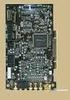 Creative Sound Blaster Audigy 2 ZS Quick Start Guide This document describes the hardware and software installation of the Creative Sound Blaster Audigy 2 ZS. For more information, refer to the Installation
PCI Express グラフィックス カードの取り付け
 PCI Express graphics card installation HP xw Workstation series This document describes how to install a PCI Express graphics card in your workstation. This graphics card uses the PCI Express hardware
内蔵 USB コネクタキットの取り付け はじめに 内蔵 USB コネクタキットには ワークステーションのシャーシに内蔵されているタイプ A USB デバイスに対応したタイプ A の USB コネクタ ( メス ) が含まれています このガイドでは 内蔵 USB コネクタキットを HP Z および x
 内蔵 USB コネクタキットの取り付け はじめに 内蔵 USB コネクタキットには ワークステーションのシャーシに内蔵されているタイプ A USB デバイスに対応したタイプ A の USB コネクタ ( メス ) が含まれています このガイドでは 内蔵 USB コネクタキットを HP Z および xw シリーズワークステーションに取り付ける方法について説明します キットの内容 内蔵 USB コネクタキット
内部USB コネクタ キットの取り付け
 内部 USB コネクタキットの取り付け 概要 内部 USB コネクタキットには ワークステーションのシャーシに装備されている Type A USB デバイスと互換性のある Type A メスの USB コネクタが含まれています このマニュアルでは 内部 USB コネクタキットを HP および xw シリーズワークステーションに取り付ける方法について説明します JAWW 概要 1 キットの内容 内部
Creative Sound Blaster Audigy 2 ZS Quick Start Guide
 Creative Sound Blaster Audigy 2 ZS Quick Start Guide This document describes the hardware and software installation of the Creative Sound Blaster Audigy 2 ZS. For more information, refer to the Installation
Installing an IEEE-1394 card
 Installing an IEEE-1394 card Installing an IEEE-1394 card Kit contents This document describes how to install an IEEE-1394 card in your HP workstation. The following components are included in your processor
Nvidia Quadro FX5800 グラフィックスカードおよび補助電源アダプタケーブルの取り付け 概要 このマニュアルでは Nvidia Quadro FX5800 グラフィックスカードおよび補助電源アダプタケーブルを HP xw8600 ワークステーションと xw9400 ワークステーション
 Nvidia Quadro FX5800 グラフィックスカードおよび補助電源アダプタケーブルの取り付け 概要 このマニュアルでは Nvidia Quadro FX5800 グラフィックスカードおよび補助電源アダプタケーブルを HP xw8600 ワークステーションと xw9400 ワークステーションに取り付ける方法を説明します キットの内容 FX5800 グラフィックスカード 補助電源アダプタケーブル
Broadcom NetXtreme® Gigabit Ethernet Plus ネットワーク インタフェース カードの取り付け
 Broadcom NetXtreme Gigabit Ethernet Plus ネットワークインタフェースカードの取り付け 概要 このマニュアルでは ワークステーションの PCI Express ( PCIe ) スロットに Broadcom NetXtreme Gigabit Ethernet Plus ネットワークインタフェースカード (NIC) を取り付ける方法を説明します キットの内容 Broadcom
Creative Sound Blaster Audigy 2 ZS クイック スタート ガイド
 Creative Sound Blaster Audigy 2 ZS クイックスタートガイド This document describes the hardware and software installation of the Creative Sound Blaster Audigy 2 ZS. For more information, refer to the Installation
LSI SAS 3041E Serial Attached SCSI RAID ホストバスアダプタの取り付け 概要 このマニュアルでは LSI SAS 3041E Serial Attached SCSI ( SAS ) Redundant Array of Independent Disks(RA
 LSI SAS 3041E Serial Attached SCSI RAID ホストバスアダプタの取り付け 概要 このマニュアルでは LSI SAS 3041E Serial Attached SCSI ( SAS ) Redundant Array of Independent Disks(RAID) ホストバスアダプタ (HBA) を HP および xw シリーズワークステーションに取り付ける方法を説明します
Diskette Drive Installation
 Diskette Drive Installation HP xw Series Workstation This document describes how to install a diskette drive. Kit Contents This product is shipped with the necessary supplies for installing a diskette
Diskette Drive Installation
 Diskette Drive Installation HP Workstation xw Series This document describes how to install a diskette drive. Kit Contents This product is shipped with the necessary supplies for installing a diskette
スライディング ラック マウント キットの取り付け
 スライディングラックマウントキットの取り付け 概要 このマニュアルでは HP 600 ワークステーションおよび HP 800 ワークステーションでのスライディングラックマウントキットの取り付け方法を説明します また ワークステーションをラックに取り付ける方法についても説明します キットの内容 この製品には HP ラウンドホールおよびスクエアホールラック 従来の HP ラック スレッドホール付きのラックなどのサードパーティ製ラックにスライディングラックキットを取り付けるために必要になる部品が含まれています
PCI Express Graphics Products
 PCI Express Graphics Products This graphics card uses the PCI Express hardware interconnect standard. It is designed to work using your PCI Express x16 I/O slot. PCI Express is the successor to the PCI,
ラック マウント トレイの取り付け
 ラックマウントトレイの取り付け 601530-293 2012 Hewlett-Packard Development Company, L.P. ラックマウントトレイの取り付け はじめに このガイドでは ラックマウントトレイを HP Z2x0 CMT Z4x0 および xw4x00 ワークステーションシリーズに取り付ける方法について説明します また トレイを取り付けたワークステーションをラックに設置する方法についても説明します
LSI MegaRAID SAS i カードの取り付け はじめに このガイドでは LSI MegaRAID SAS i 6Gb SAS ROC(RAID-on-Chip) カードを HP Z シリーズのワークステーションに取り付ける方法について説明します また ハードドライブ
 LSI MegaRAID SAS 9260-8i カードの取り付け はじめに このガイドでは LSI MegaRAID SAS 9260-8i 6Gb SAS ROC(RAID-on-Chip) カードを HP Z シリーズのワークステーションに取り付ける方法について説明します また ハードドライブベイおよびオプティカルドライブベイに取り付けられた SAS ハードディスクドライブを RAID (Redundant
Processor Installation
 Second Xeon processor installation Second Xeon processor installation HP xw6000/xw8000 series workstations w/lga sockets This document describes how to install a second Xeon processor in HP xw6000 or xw8000
SAS/SATA ハード ドライブの取り付け
 SAS/SATA hard drive installation HP xw Workstation series This document describes how to install a Serial Attached SCSI (SAS) and Serial ATA (SATA) hard disk drive (HDD) on your workstation. Kit contents
内蔵ハードディスクユニット-20GB (PG-HD2E4H) 内蔵ハードディスクユニット-40GB (PG-HD4E4H)取扱説明書 HARD DISK DRIVE 20GB(PG-HD2E4H) HARD DISK DRIVE 40GB(PG-HD4E4H) USER'S GUIDE
 B7FY-0351-02 J E J 1 J 1 2 3 2 4 J 3 4 Preface Thank you very much for purchasing the hard disk drive. This hard disk drive provides a IDE interface and can be installed in the 3.5-inch storage bay of
HP SkyRoom のハードウェアとソフトウェアのインストール
 はじめに HP SkyRoom のハードウェアとソフトウェアのインストール ヒント : 受け取ったハードウェアキットを確認し 以下の適切な指示に従ってください Installing the webcamwebcam の取り付け 1. Webcam に付属の CD を挿入して Webcam ソフトウェアをインストールします 2. プロンプトが表示されたら 空いている USB ポートに Webcam を接続します
Microsoft Word - PrivateAccess_UM.docx
 `````````````````SIRE Page 1 English 3 日本語 7 Page 2 Introduction Welcome to! is a fast, simple way to store and protect critical and sensitive files on any ixpand Wireless Charger. Create a private vault
WARNING To reduce the risk of fire or electric shock,do not expose this apparatus to rain or moisture. To avoid electrical shock, do not open the cabi
 ES-600P Operating Instructions WARNING To reduce the risk of fire or electric shock,do not expose this apparatus to rain or moisture. To avoid electrical shock, do not open the cabinet. Refer servicing
fx-9860G Manager PLUS_J
 fx-9860g J fx-9860g Manager PLUS http://edu.casio.jp k 1 k III 2 3 1. 2. 4 3. 4. 5 1. 2. 3. 4. 5. 1. 6 7 k 8 k 9 k 10 k 11 k k k 12 k k k 1 2 3 4 5 6 1 2 3 4 5 6 13 k 1 2 3 1 2 3 1 2 3 1 2 3 14 k a j.+-(),m1
DZ-HS503 取扱説明書
 DZ-HS503 Important Information WARNING : To prevent fire or shock hazard, do not expose this unit to rain or moisture. WARNING : To prevent fire or shock hazard, use the recommended accessories only. CAUTION
DZ-GX3300/GX3100/GX3100取扱説明書
 DZ-GX3300(S)/(B) DZ-GX3200 DZ-GX3100 Important Information WARNING : To prevent fire or shock hazard, do not expose this unit to rain or moisture. WARNING : To prevent fire or shock hazard, use the recommended
DZ-HS303 取扱説明書
 DZ-HS303(S)/(A) Important Information WARNING : To prevent fire or shock hazard, do not expose this unit to rain or moisture. WARNING : To prevent fire or shock hazard, use the recommended accessories
NSR-500 Installation Guide
 NSR Installation Guide This information has been prepared for the professional installers not for the end users. Please handle the information with care. Overview This document describes HDD installation
ドライバインストールガイド
 PRIMERGY Single Port ファイバーチャネルカード (8Gbps) Dual Port ファイバーチャネルカード (8Gbps) (PG-FC205/PG-FC205L) (PG-FC206/PG-FC206L) CA092276-8938-01 ドライバインストールガイド i 目次 1. ドライバのインストール / アンインストール方法... 3 1.1. ドライバのダウンロード
DZ-GX20/DZ-MV780取扱説明書(上巻)
 DZ-GX20 DZ-MV780(S) DZ-MV780(R) DZ-MV780(A) Important Information WARNING : To prevent fire or shock hazard, do not expose this unit to rain or moisture. WARNING : To prevent fire or shock hazard, use
ThinkPad Wireless WAN Card Quick Start Guide_JA
 ThinkPad Wireless WAN Card クイック スタート ガイド 第 1 章製品説明 ご使用の ThinkPad コンピューターでワイヤレス広域ネットワーク (WAN) カードがサポートされている場合 ワイヤレス WAN カードをコンピューターの PCI (Peripheral Component Interconnect) Express M.2 カード スロットに取り付けることができます
Tab 5, 11 Tab 4, 10, Tab 3, 9, 15Tab 2, 8, 14 Tab 1, 7, 13 2
 COMPANION 20 MULTIMEDIA SPEAKER SYSTEM Owner s Guide Tab 5, 11 Tab 4, 10, Tab 3, 9, 15Tab 2, 8, 14 Tab 1, 7, 13 2 Tab1, 7, 13 Tab 2, 8, 14 Tab 3, 9, 15 Tab 4, 10, Tab 5, 11 This product conforms to all
Steinberg AXR4T Firmware Update Guide
 Steinberg AXR4T Firmware Update Guide (For Windows, Mac) Thank you for choosing a Steinberg product. This document explains how to update the firmware of the device by using a computer connected to the
NSR-500 Create DVD Installer Procedures
 Creating NSR-500 DVD Installer Overview This document describes how to create DVD installer for the NSR-500 series. Applicable Model NSR-500 Series To be required * Windows (XP, Vista or 7) installed PC
Microsoft Windows XP Professional x64 Editionインストール方法説明書
 Microsoft Windows XP Professional x64 Edition インストール方法説明書 HP Business Desktop dx5150 MT シリーズ この度は Microsoft Windows XP Professional x64 Edition アップグレードキット をご購入いただきありがとうございます このガイドでは 同梱のキットを使用して Microsoft
SATA オプティカル ドライブの取り付け
 SATA optical drive installation HP xw Workstation series This document describes how to install a Serial ATA (SATA) optical disk drive (ODD) on your workstation. Kit contents Ensure that the following
Actual ESS Adapterの使用について
 Actual ESS Adapter SQL External SQL Source FileMaker SQL ESS SQL FileMaker FileMaker SQL FileMaker FileMaker ESS SQL SQL FileMaker ODBC SQL FileMaker Microsoft SQL Server MySQL Oracle 3 ODBC Mac OS X Actual
LC304_manual.ai
 Stick Type Electronic Calculator English INDEX Stick Type Electronic Calculator Instruction manual INDEX Disposal of Old Electrical & Electronic Equipment (Applicable in the European Union
注意 Caution 1) AMT-KS を溶接ロボット等に取り付ける際には 必ず溶接機の電源を OFF にし 電気が流れていないことを確認した後 作業を行ってください Keep off of the welding power source during AMT-KS installation w
 溶業資 No.012015-L001 溶接ワイヤ用矯正機 Welding wire straightener 取扱説明書 Instruction manual Ver.1.0-1- 注意 Caution 1) AMT-KS を溶接ロボット等に取り付ける際には 必ず溶接機の電源を OFF にし 電気が流れていないことを確認した後 作業を行ってください Keep off of the welding power
Huawei G6-L22 QSG-V100R001_02
 G6 1 2 3 4 5 6 7 8 9 10 11 12 13 14 15 16 1 2 3 17 4 5 18 UI 100% 8:08 19 100% 8:08 20 100% 8:08 21 100% 8:08 22 100% 8:08 ********** 23 100% 8:08 Happy birthday! 24 S S 25 100% 8:08 26 http://consumer.huawei.com/jp/
2 3
 RR-XR330 C Matsushita Electric Industrial Co., Ltd.2001 2 3 4 + - 5 6 1 2 3 2 1-3 + + - 22 +- 7 22 8 9 1 2 1 2 1 2 3 12 4 1 2 5 12 1 1 2 3 1 2 1 2 10 11 1 2 $% 1 1 2 34 2 % 3 % 1 2 1 2 3 1 2 12 13 1 2
ソフトウェアの更新ユーザーガイド
 ソフトウェアの更新ユーザーガイド Copyright 2009 Hewlett-Packard Development Company, L.P. Windows および Windows Vista は 米国 Microsoft Corporation の米国およびその他の国における登録商標です 製品についての注意事項 このユーザーガイドでは ほとんどのモデルに共通の機能について説明します 一部の機能は
How to read the marks and remarks used in this parts book. Section 1 : Explanation of Code Use In MRK Column OO : Interchangeable between the new part
 Reservdelskatalog MIKASA MT65H vibratorstamp EPOX Maskin AB Postadress Besöksadress Telefon Fax e-post Hemsida Version Box 6060 Landsvägen 1 08-754 71 60 08-754 81 00 [email protected] www.epox.se 1,0 192 06
UR28M/UR824/UR44/UR12/UR22mkII Firm UG
 Steinberg UR28M/ UR824/ UR44/ UR12/ UR22mkII Firmware Update Guide (For Windows/Mac) Thank you for choosing a Steinberg product. This document explains how to update the firmware of the device (with the
i5 Catalyst Case Instructions JP
 Catalyst iphone iphone iphone ON/OFF O O Touch ID Page 01 iphone O O O O O Page 02 ( ) O OK O O O 30 30 min Page 03 ( ) 30 O iphone iphone iphone iphone iphone iphoneiphone Catalyst ON/OFF iphone iphone
 6 4 45 7ZS 5 59 7 8 94 05 4 5 6 4 5 5 6 8 8 40 45 48 56 60 64 66 66 68 7 78 80 8 7 8 0 0 0 90 0 57 64 69 66 66 69 0 4 4 4 4 4 0 7 48 5 4 4 5 4 4 4 7 46 46 6 46 8 46 48 46 46 4 46 46 4 4 5 4 6 4 9 9 0
UR28MUR824UR44UR22mkII Firmware Update Guide
 Steinberg UR28M/ UR824/ UR44/ UR22mkII Firmware Update Guide (For Windows/Mac) Thank you for choosing a Steinberg product. This document explains how to update the firmware of the device (with the UR28M
How to read the marks and remarks used in this parts book. Section 1 : Explanation of Code Use In MRK Column OO : Interchangeable between the new part
 Reservdelskatalog MIKASA MCD-L14 asfalt- och betongsåg EPOX Maskin AB Postadress Besöksadress Telefon Fax e-post Hemsida Version Box 6060 Landsvägen 1 08-754 71 60 08-754 81 00 [email protected] www.epox.se
 6 4 4 9RERE6RE 5 5 6 7 8 9 4 5 6 4 4 5 6 8 4 46 5 7 54 58 60 6 69 7 8 0 9 9 79 0 4 0 0 4 4 60 6 9 4 6 46 5 4 4 5 4 4 7 44 44 6 44 8 44 46 44 44 4 44 0 4 4 5 4 8 6 0 4 0 4 4 5 45 4 5 50 4 58 60 57 54
Microsoft Word - Win-Outlook.docx
 Microsoft Office Outlook での設定方法 (IMAP および POP 編 ) How to set up with Microsoft Office Outlook (IMAP and POP) 0. 事前に https://office365.iii.kyushu-u.ac.jp/login からサインインし 以下の手順で自分の基本アドレスをメモしておいてください Sign
 6 4 45 ZS7ZS4ZS 5 59 7 8 94 05 4 5 6 4 5 5 6 8 8 40 45 48 56 60 64 66 66 68 7 78 80 8 7 8 0 0 0 90 0 0 4 4 4 4 6 57 64 69 66 66 66 69 4 0 7 48 5 4 4 5 4 4 4 7 46 46 6 46 8 46 48 46 46 4 46 46 4 4 5 4
OUTSIDE FRONT COVER Setup Guide セットアップ ガイド C M Y K PMS 3005
 OUTSIDE FRONT COVER Setup Guide セットアップ ガイド C M Y K PMS 3005 Microsoft Surface Hub with 55 display MS Surface Hub Setup Guide English This guide assumes youʼve already unpacked and mounted Microsoft Surface
クイックスタートガイド [SC-03E]
![クイックスタートガイド [SC-03E]](/thumbs/96/127590290.jpg "クイックスタートガイド [SC-03E]") a L R 2.4 FH1 / DS4 / OF4 / XX8 IEEE802.11b/g/n IEEE802.11a/n J52 W52 W53 W56 g h a i b j c k m n o p q s t u v w t d e f l g a b c d r e f g h i j k l m n o p q r s t u v w x
a L R 2.4 FH1 / DS4 / OF4 / XX8 IEEE802.11b/g/n IEEE802.11a/n J52 W52 W53 W56 g h a i b j c k m n o p q s t u v w t d e f l g a b c d r e f g h i j k l m n o p q r s t u v w x
2
 8 24 32C800037C800042C8000 32 40 45 54 2 3 24 40 10 11 54 4 7 54 30 26 7 9 8 5 6 7 9 8 18 7 7 7 40 10 13 12 24 22 22 8 55 8 8 8 8 1 2 3 18 11 54 54 19 24 30 69 31 40 57 23 23 22 23 22 57 8 9 30 12 12 56
L3 Japanese (90570) 2008
 90570-CDT-08-L3Japanese page 1 of 15 NCEA LEVEL 3: Japanese CD TRANSCRIPT 2008 90570: Listen to and understand complex spoken Japanese in less familiar contexts New Zealand Qualifications Authority: NCEA
DocuPrint CP400 d / CP400 ps 知りたい、困ったにこたえる本
 2 3 4 5 6 1 2 3 7 8 9 10 11 12 13 14 100 mm 927 mm 427 mm 400 mm 197 mm 600 mm 488 mm 400 mm 200 mm 584 mm 197 mm 384 mm 600 mm 488 mm 400 mm 15 16 17 18 19 警告および注意ラベルの貼り付け位置 機械に貼ってあるラベルの警告や説明には必ず従ってください
HP Remote Graphics Software Receiver and Sender Installation Guide
 HP Remote Graphics Software HP Remote Graphics Software Receiver および Sender 本書は サポート対象の各プラットフォーム (Microsoft Windows Linux HP-UX) に対して Receiver および Sender の両モジュールをインストールする際の概要を記載しています 詳しい手順については Module
2
 8 23 32A950S 30 38 43 52 2 3 23 40 10 33 33 11 52 4 52 7 28 26 7 8 8 18 5 6 7 9 8 17 7 7 7 38 10 12 9 23 22 22 8 53 8 8 8 8 1 2 3 17 11 52 52 19 23 29 71 29 41 55 22 22 22 22 22 55 8 18 31 9 9 54 71 44
TOOLS for UR44 Release Notes for Windows
 TOOLS for UR44 V2.1.2 for Windows Release Notes TOOLS for UR44 V2.1.2 for Windows consists of the following programs. - V1.9.9 - Steinberg UR44 Applications V2.1.1 - Basic FX Suite V1.0.1 Steinberg UR44
HP User Manual for the Integrated Intel SATA RAID Controller for Microsoft Windows XP Professional and Windows 2000 Profess...
 Microsoft Windows XP Professional および Windows 2000 Professional 対応の内蔵 Intel SATA RAID コントローラ用 HP ユーザーマニュアル 内蔵 SATA RAID コントローラ... 2 RAID を有効にする最適な方法の選択... 2 HP Recovery Media を使用した RAID のセットアップ... 2 手順
入学検定料支払方法の案内 1. 入学検定料支払い用ページにアクセス ポータルの入学検定料支払いフォームから 入学検定料支払い用 URL の ここをクリック / Click here をクリックしてください クリックを行うと 入学検定料支払い用のページが新たに開かれます ( 検定料支払い用ページは ポ
 Keio Academy of New York Admissions Portal 入学検定料支払方法の案内 < 日本語 :P1 ~ 7> Page1 入学検定料支払方法の案内 1. 入学検定料支払い用ページにアクセス ポータルの入学検定料支払いフォームから 入学検定料支払い用 URL の ここをクリック / Click here をクリックしてください クリックを行うと
2
 8 23 26A800032A8000 31 37 42 51 2 3 23 37 10 11 51 4 26 7 28 7 8 7 9 8 5 6 7 9 8 17 7 7 7 37 10 13 12 23 21 21 8 53 8 8 8 8 1 2 3 17 11 51 51 18 23 29 69 30 39 22 22 22 22 21 56 8 9 12 53 12 56 43 35 27
NSR-500 Create USB Installer Procedures
 Creating NSR-500 USB Installer Overview This document describes how to create the USB installer for the NSR- 500 series. Applicable Model NSR-500 Series To Be Required * Windows (XP, Vista or 7) installed
MIDI_IO.book
 MIDI I/O t Copyright This guide is copyrighted 2002 by Digidesign, a division of Avid Technology, Inc. (hereafter Digidesign ), with all rights reserved. Under copyright laws, this guide may not be duplicated
*C3200−îŒ{fiI‡È”g‡¢Łû01-07
 2 2 1 2 3 4 a b c d 5 6 7 8 9 10 11 12 13 14 2 2 15 16 I/O ipk 17 18 19 20 LAN! 21 22 23 24 25 26 Web Navi Text To Speech 27 Outlook Intellisync HancomMobileWord/Sheet HancomMobileWord/Sheet 28 29 30 a
 5 7 3AS40AS 33 38 45 54 3 4 5 4 9 9 34 5 5 38 6 8 5 8 39 8 78 0 9 0 4 3 6 4 8 3 4 5 9 5 6 44 5 38 55 4 4 4 4 5 33 3 3 43 6 6 5 6 7 3 6 0 8 3 34 37 /78903 4 0 0 4 04 6 06 8 08 /7 AM 9:3 5 05 7 07 AM 9
z230/z440/z640/z840用Thunderbolt2 Card セットアップ手順書
 発行 2014 年 11 月 28 日 日本ヒューレット パッカード ( 株 ) Thunderbolt 2 PCIe カード設定手順 Ver2.0 - Z230 / Z440 / Z640 / Z840 - 対象となる機種 Z230 Workstation( タワー型および SFF = スリム型 ) Z440 Workstation Z640 Workstation Z840 Workstation
2 3 12 13 6 7
 2 8 17 42ZH700046ZH700052ZH7000 28 43 54 63 74 89 2 3 12 13 6 7 3 4 11 21 34 63 65 8 17 4 11 4 55 12 12 10 77 56 12 43 43 13 30 43 43 43 43 10 45 14 25 9 23 74 23 19 24 43 8 26 8 9 9 4 8 30 42 82 18 43
Broadcom PCI Express NIC Installation
 Broadcom PCI Express NIC Installation This document describes how to install a Broadcom Network Interface Card (NIC) into a PCI Express slot on your workstation. This card uses the third-generation (3GIO)
How to read the marks and remarks used in this parts book. Section 1 : Explanation of Code Use In MRK Column OO : Interchangeable between the new part
 Reservdelskatalog MIKASA MVC-88 vibratorplatta EPOX Maskin AB Postadress Besöksadress Telefon Fax e-post Hemsida Version Box 6060 Landsvägen 1 08-754 71 60 08-754 81 00 [email protected] www.epox.se 1,0 192
19_22_26R9000操作編ブック.indb
 8 19R900022R900026R9000 25 34 44 57 67 2 3 4 10 37 45 45 18 11 67 25 34 39 26 32 43 7 67 7 8 7 9 8 5 7 9 21 18 19 8 8 70 8 19 7 7 7 45 10 47 47 12 47 11 47 36 47 47 36 47 47 24 35 8 8 23 12 25 23 OPEN
 5 30 B36B3 4 5 56 6 7 3 4 39 4 69 5 56 56 60 5 8 3 33 38 45 45 7 8 4 33 5 6 8 8 8 57 60 8 3 3 45 45 8 9 4 4 43 43 43 43 4 3 43 8 3 3 7 6 8 33 43 7 8 43 40 3 4 5 9 6 4 5 56 34 6 6 6 6 7 3 3 3 55 40 55
Introduction Purpose This training course describes the configuration and session features of the High-performance Embedded Workshop (HEW), a key tool
 Introduction Purpose This training course describes the configuration and session features of the High-performance Embedded Workshop (HEW), a key tool for developing software for embedded systems that